Use the page. Open the source. Keep what matters. Keep the work together, and make the space your own.
01 / 07
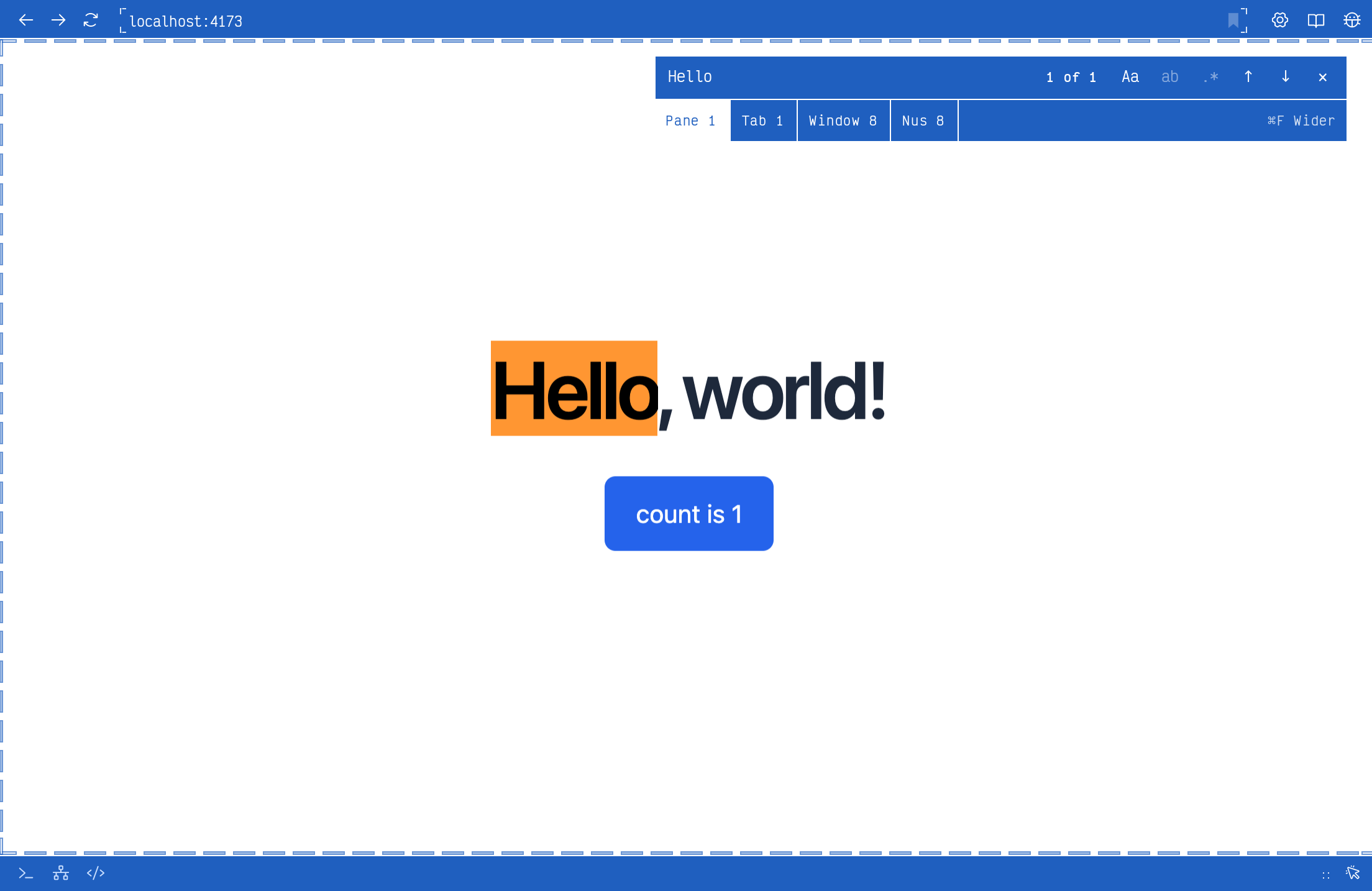
Find in the live page, with the browser controls in reach.
01 / The browser
A real browser. Right here.
Read a page, use a web app, or try what you’re building. Chromium pages have their own address row, navigation, search, downloads, and developer tools.
Find starts in the page. Widen its scope to the tab, window, or all of nus when the answer might be somewhere else.
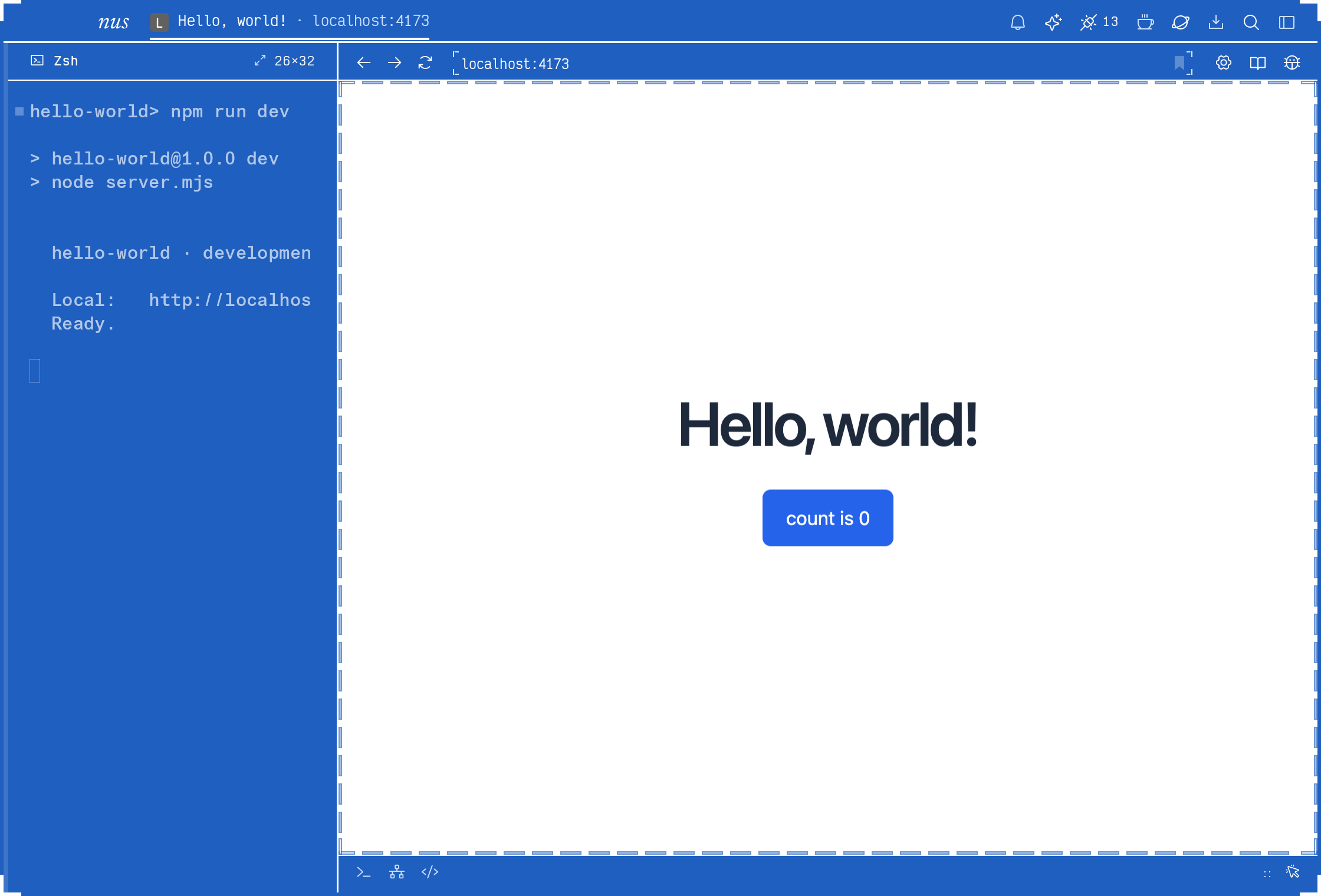
Give the page room; keep its running server beside it.
02 / Pages & shells
Give the page room to work.
Start a server and open its page beside the output. Give the page most of the window, keep documentation nearby, or let either pane take the whole view.
Tabs, splits, and named Spaces let each project keep its own arrangement. Your shell configuration, aliases, and command-line tools come with you.
The page in front.Use the actual site while its server keeps running beside it.
A shell within reach.Follow the output, select text, and return to the command when you need it.
Room for the whole job.Keep the server, documentation, and assistant in the same project. Move between them without losing your place.
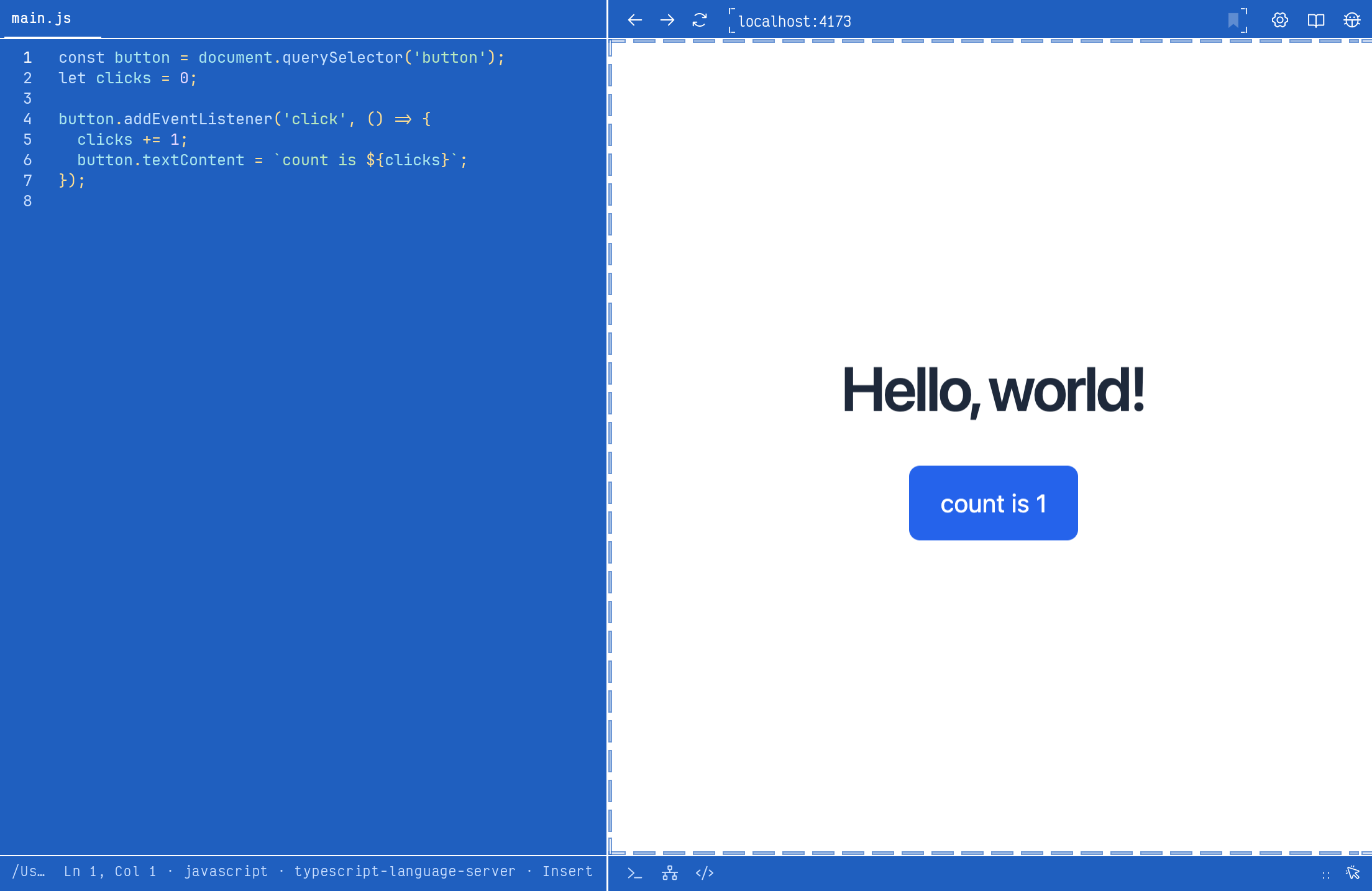
The source and its working page, side by side.
03 / The editor
Source and result. Side by side.
Open a file beside the page you’re building. The source and the working result stay in the same window, with dedicated text selection and editing controls.
Follow a file-and-line reference from command output into the editor, then return to the running session.
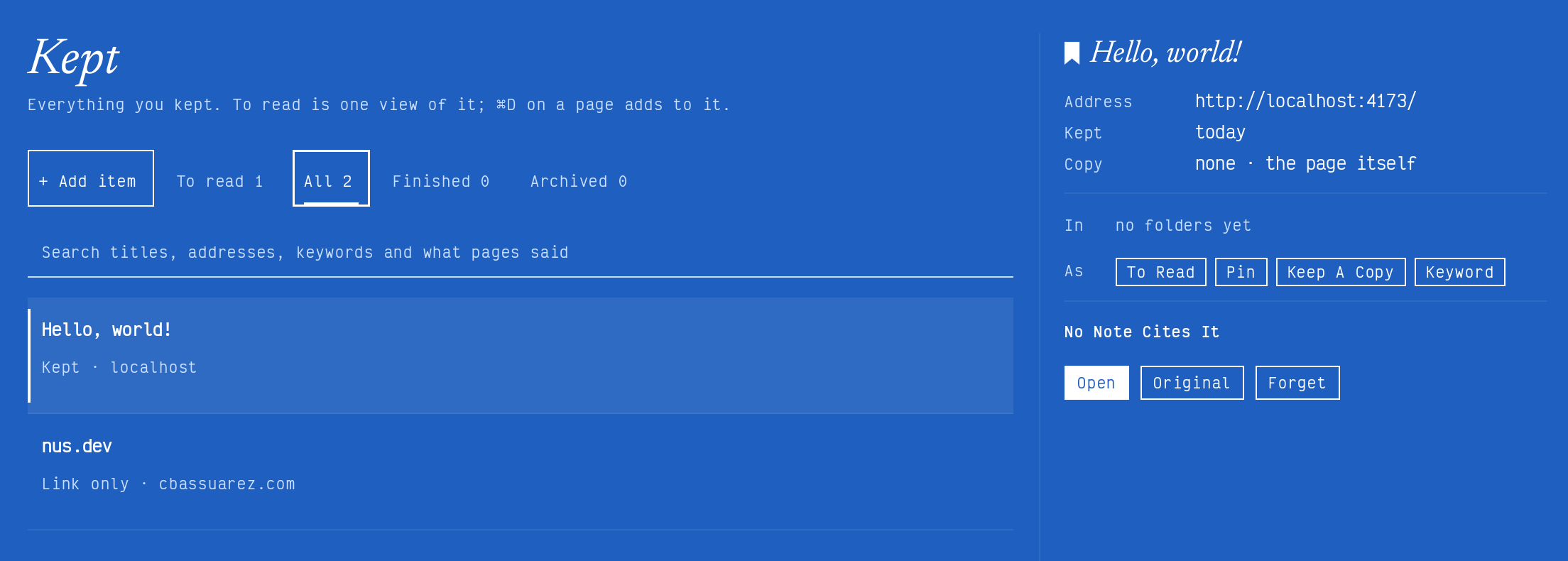
Save the page in front with its title and address. The Kept collection gives useful pages a place to return to, with actions to reopen the original, pin it, or mark it to read.
Keep a local project page close while you work, alongside the references you want to revisit.
The page, project commands and a session to return to.
05 / Your home
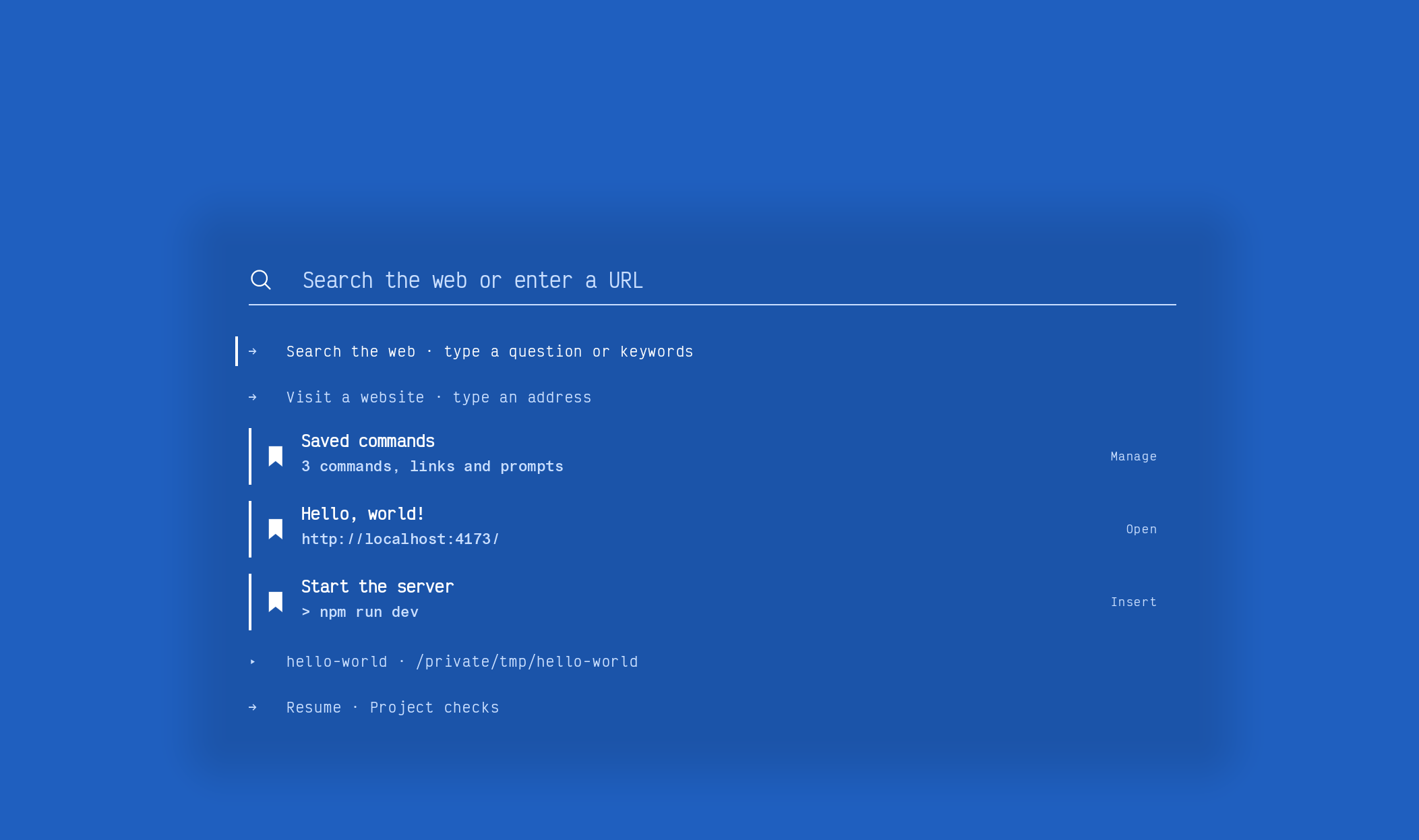
A place to begin. A place to come back to.
Start at the prompt, open a project, or resume a session. Saved links, commands, and prompts keep the things you use close at hand.
The background, type, colours, and suggestions are yours to choose. Keep it quiet, or give your workspace a little personality.
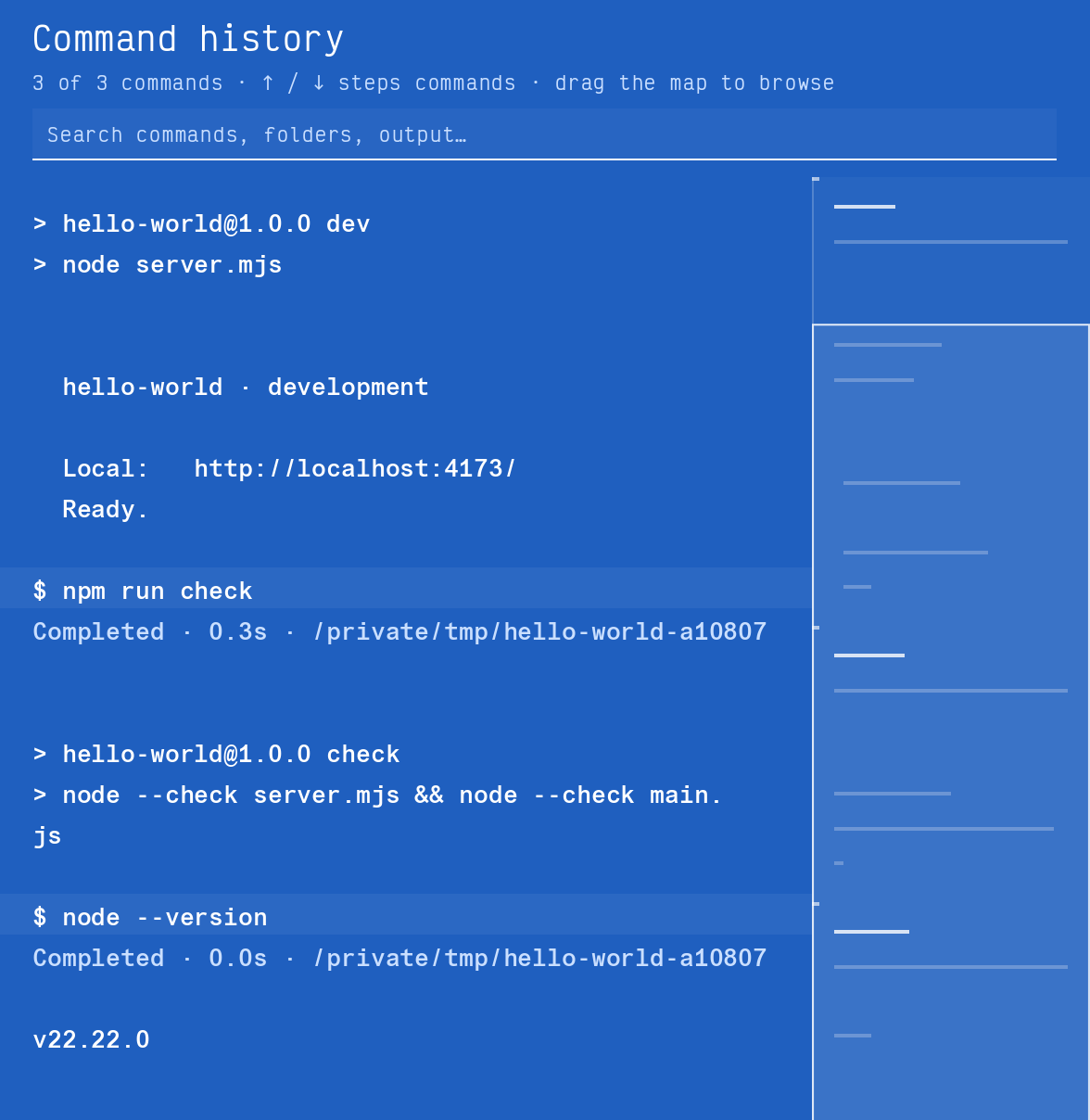
The commands, their output, and a map of the Hello World session.
06 / History
Find your way back.
A session is more than its last screen. Move through commands and their output, find an earlier result, or follow a recording when the sequence matters.
Keep useful commands in your saved collection so you can find them again without digging through a whole session.
Commands & outputNavigate the work by command, with its output close at hand.
Session playbackRevisit a recorded session in order, at your own pace.
Saved commandsKeep recurring commands, links, and prompts together.
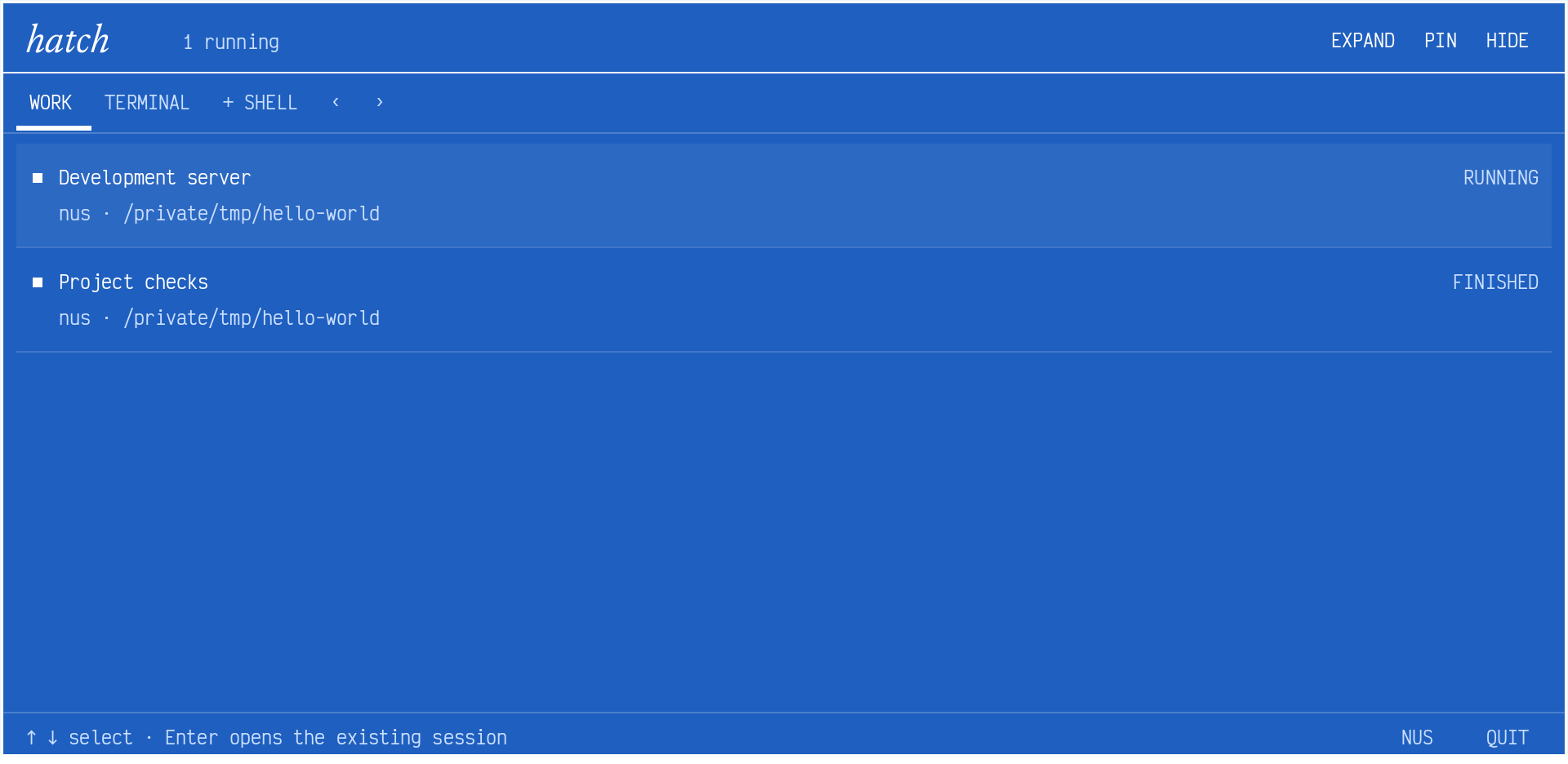
The development server is running; the project checks have finished.
07 / Hatch
Ongoing work. Within reach.
Bring up an overview of terminal work across your Spaces. See what’s running, finished, or needs your attention, then return to the original session.
Use a dropdown from the top edge or a centred panel. Move the same shell into the full workspace when you need more room.
Shortcuts, window placement, and focus behaviour vary by platform and desktop. Native-platform testing is ongoing.
Your tools, your choice
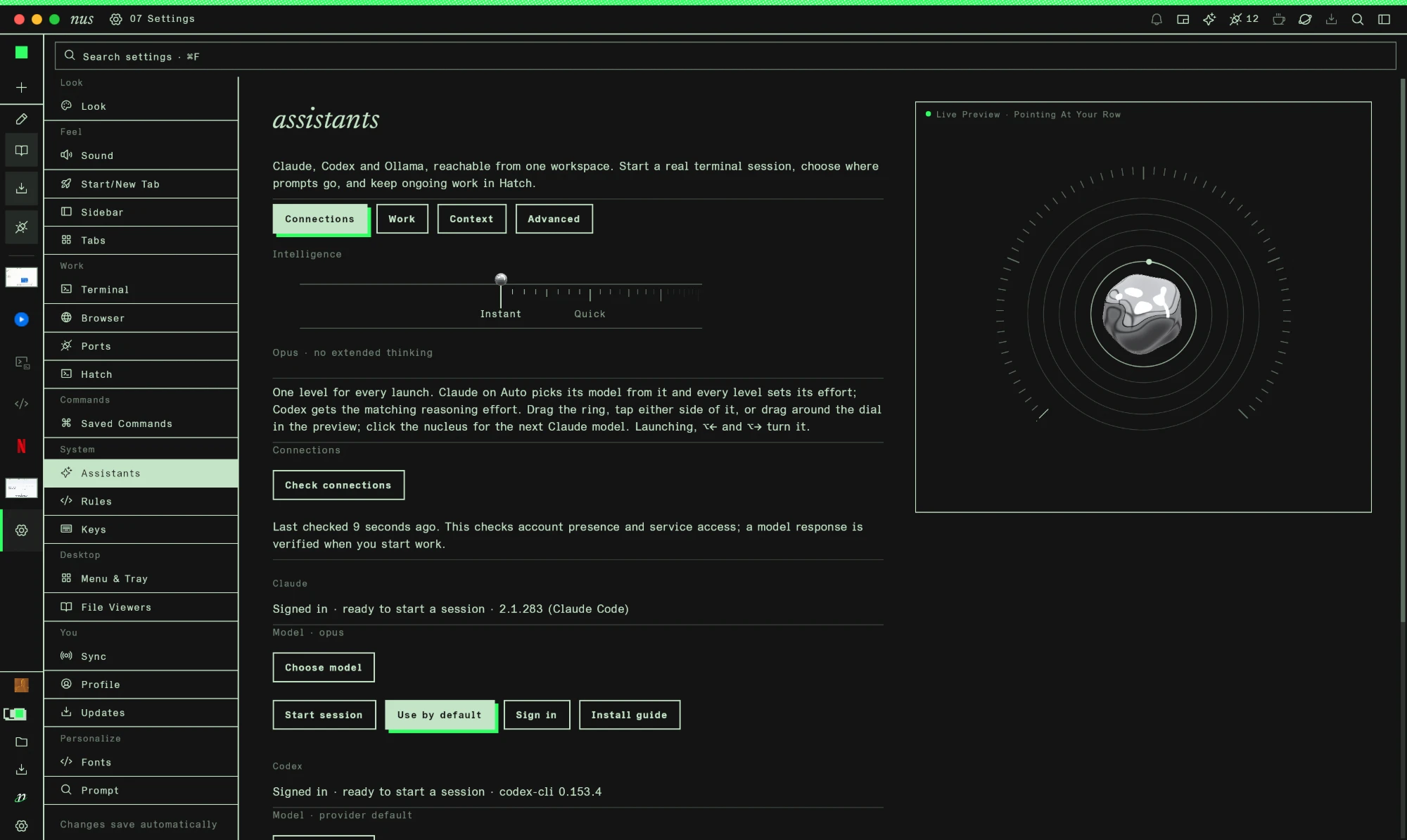
Keep your assistant in the workspace.
Configure Claude, Codex, or Ollama and send work to a shell you can return to. Inspect how each tool is launched, and keep the project context nearby.
Provider tools need to be installed and authenticated separately. Review what context is shared with external services.